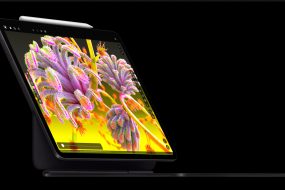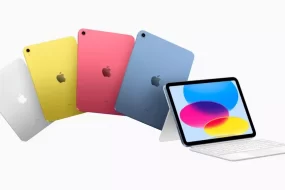
An iPad has many options. As a device, it’s perfect for anyone, be it students, office workers, or just casual users seeking entertainment. Its important benefit is erasing the need to carry other, heavier things around, such as your laptop, books, or even notepads. This tablet is also user-friendly: anyone who’s ever used an iPhone in their life will be able to navigate an iPad. The two share the same operating system.
But the main advantage of the tablet is clear — the screen size is times bigger than a smartphone. Because of that, it encompasses many advanced features and even perks unique to iPads, which we will touch on in this article.
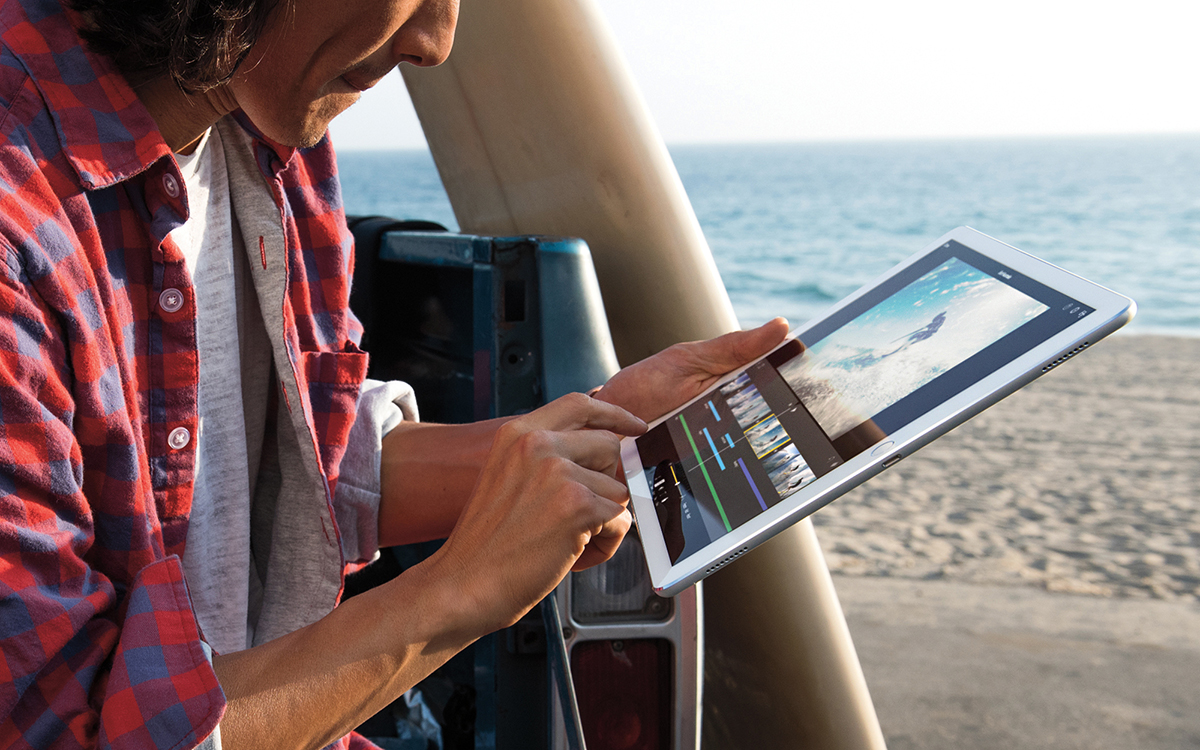
Table of contents
Working on Several Tasks via One Screen
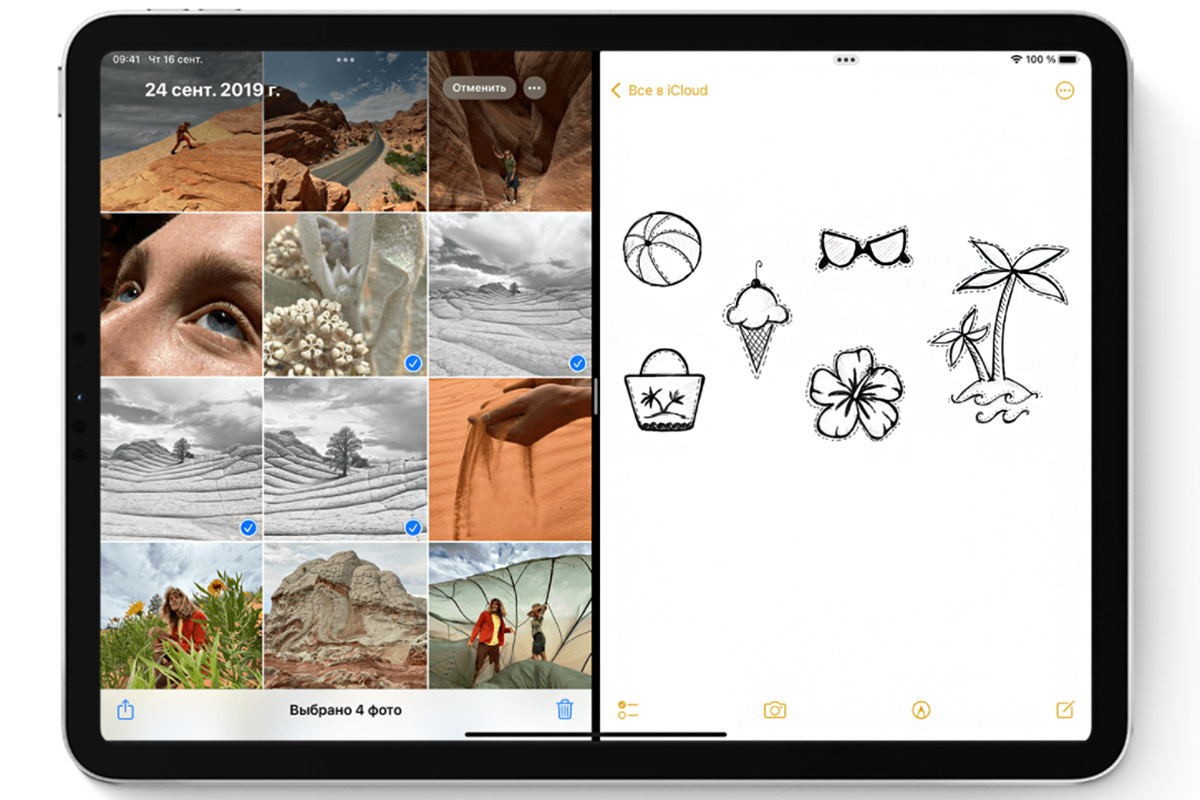
iPad allows easy multitasking. On this table, you can turn on several apps at once and use them on the same screen. The latter will be split into practical sections: for example, one will show your browser activity, and the other will help you edit a text document. If you don’t find the automatic split suitable, you can adjust the sizes and even copy and paste links and images between two windows.
How to Enable the Multi-Window Option on an iPad
To multitask on your Apple tablet, navigate to Settings, then find the Multitasking & Gestures tab. Turn on Apps in Windows.
- Tap on the top edge of the window and drag it across the screen to change the position.
- Tap on the corner and drag to change the window size.
- After changing the size, you will be able to enable another window. Utilize the Dock or swipe up on the screen to open the second app. Both will adjust automatically, moving to the sides of the iPad display.
- Now, you can work with your windows manually, changing the size to your liking.
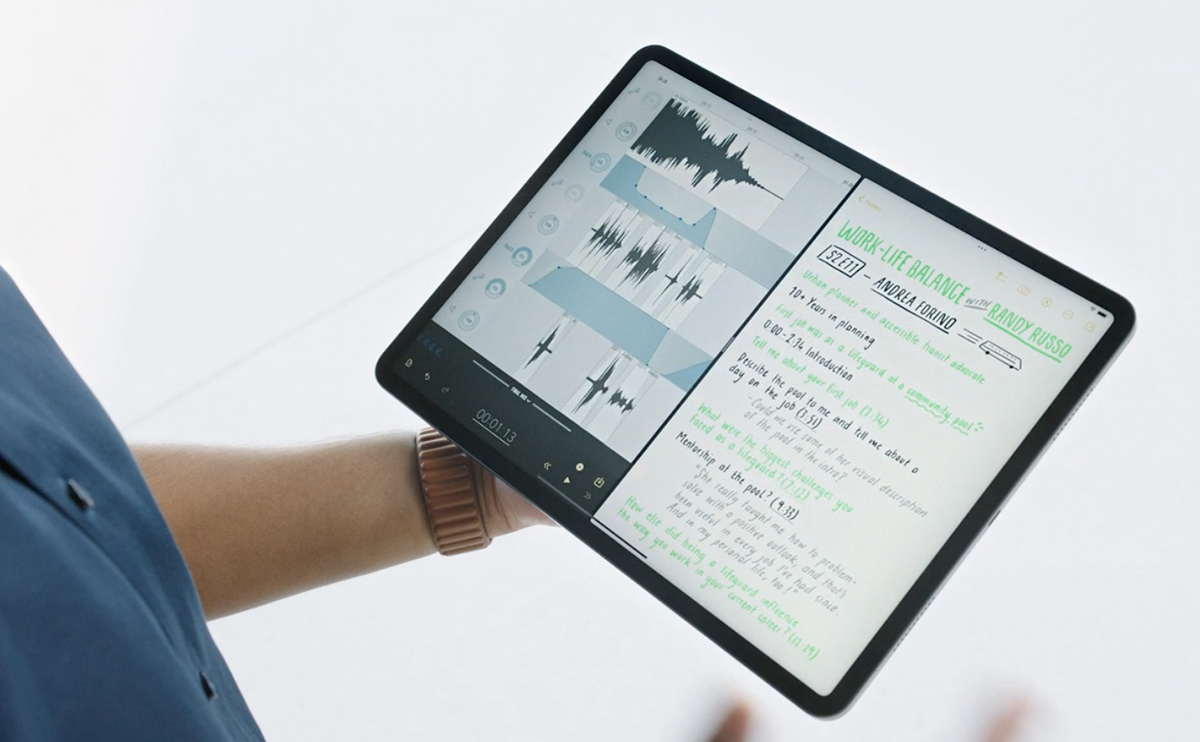
To see the app in full screen mode, you can find the green button in the top left and tap it.
Even Smoother Experience with Stage Manager
Stage Manager presents an even better experience when multitasking. In addition to having several apps on one screen in a split mode, you can group them, depending on the task you are busy with. Then, these groups can be set anywhere on the screen. Turn it on by navigating to Settings, then tapping on Multitasking & Gestures again, and selecting Stage Manager.
When on, you will see the open apps on the side of the display on the left. The apps you are working on, on the other hand, will be in the front.
Retrieving a Full Page Screenshot in PDF
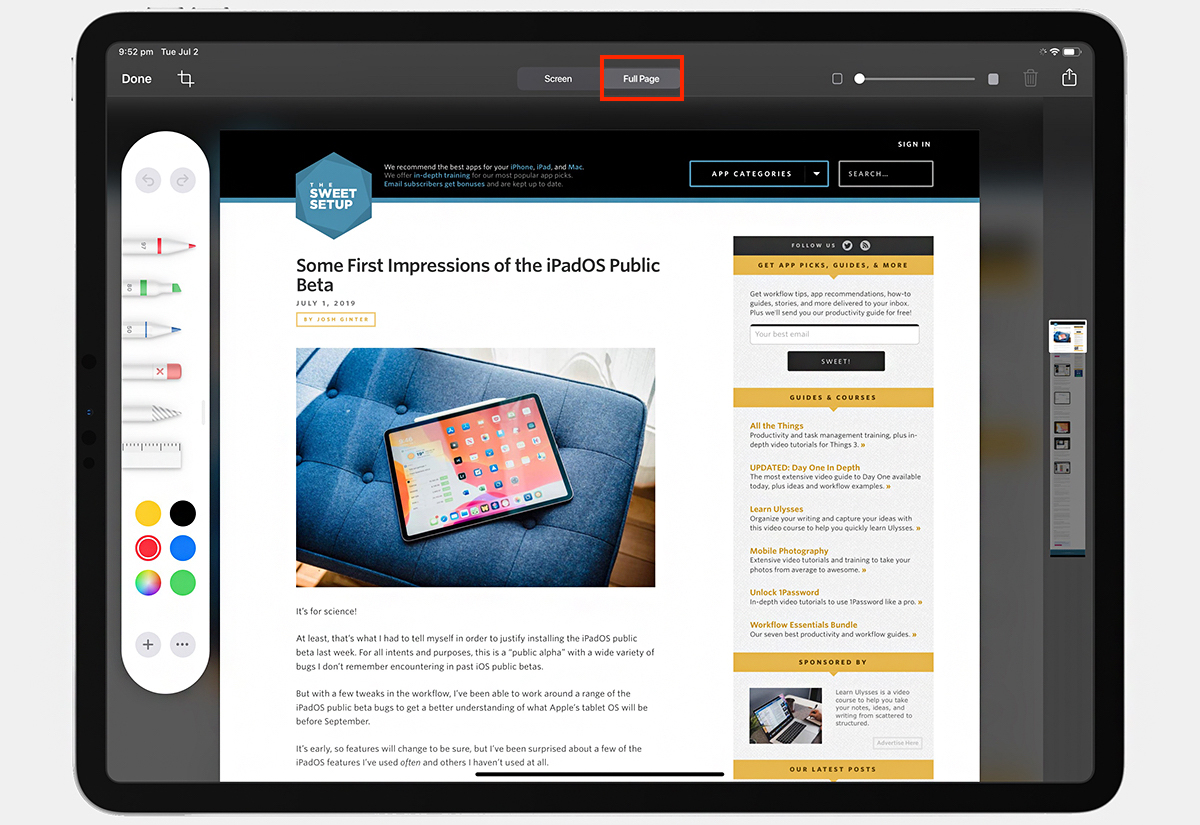
On an iPad, you can take a screenshot of a full page, and it’s not limited to the size of the screen. Whether you need to capture a document or an email, the screenshot will have no breaks, and you can even add notes to it. Then, you will be able to save it in the PDF format. This file will then automatically fit the size of the iPad or iPhone screen.
You can get a full-page Screenshot on an iPad in the following ways:
- by tapping the Home button, if it has one, and the Top button simultaneously;
- by tapping the Top button and the Volume button simultaneously, if it uses Face ID.
Once the screenshot is made, press on it in the bottom left corner. Choose Full Page, then Done. Your screenshot is ready — you can scroll it, edit it, delete or save it to Photos, or convert it to PDF.
Making Urgent Notes
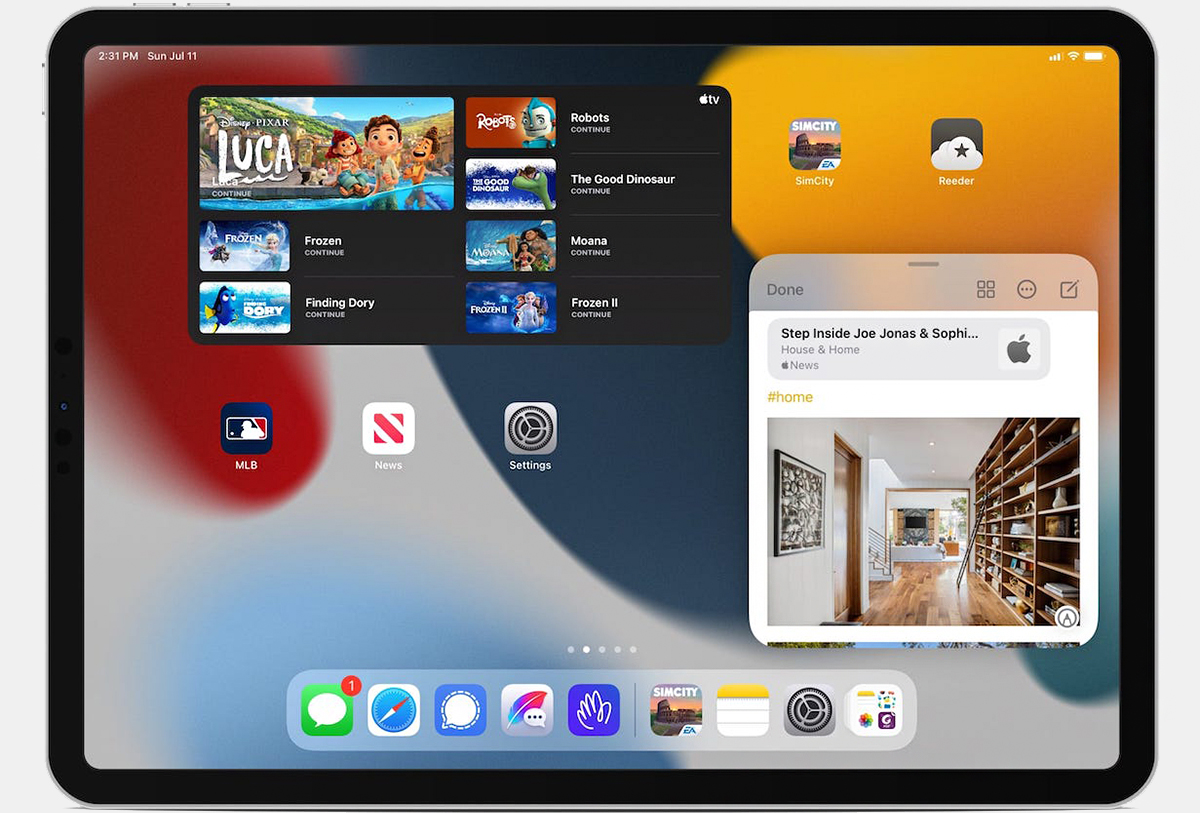
When creating the iPadOS, the Apple team knew that many users would want to jot down something important and urgent on the tablet. For instance, you might need to save someone’s professional contact details, write down a link to a useful product you found, or just do casual errands like creating a shopping list.
The iPad can do it all. Regardless of the app you use, you can leave a note right on top and save it to the Notes application. They sync across all Apple devices.
Make quick notes on an iPad like this:
- Navigate to the Control Center, then to the Notes icon. If you want to add a note on top of the app, you might need to enable it first by selecting an empty area in the destination and tapping on Notes.
- You can also add a Quick Note by swiping: go to Settings, then Apps, Notes, and pick Corner Gestures to enable. Then, use your finger or an Apple Pencil to swipe up from either bottom corner.
In case you prefer using your finger to all other ways, you can turn on Swipe Finger From Corner in Settings (Multitasking & Gestures option).
Typing with Both Hands on a Split Keyboard
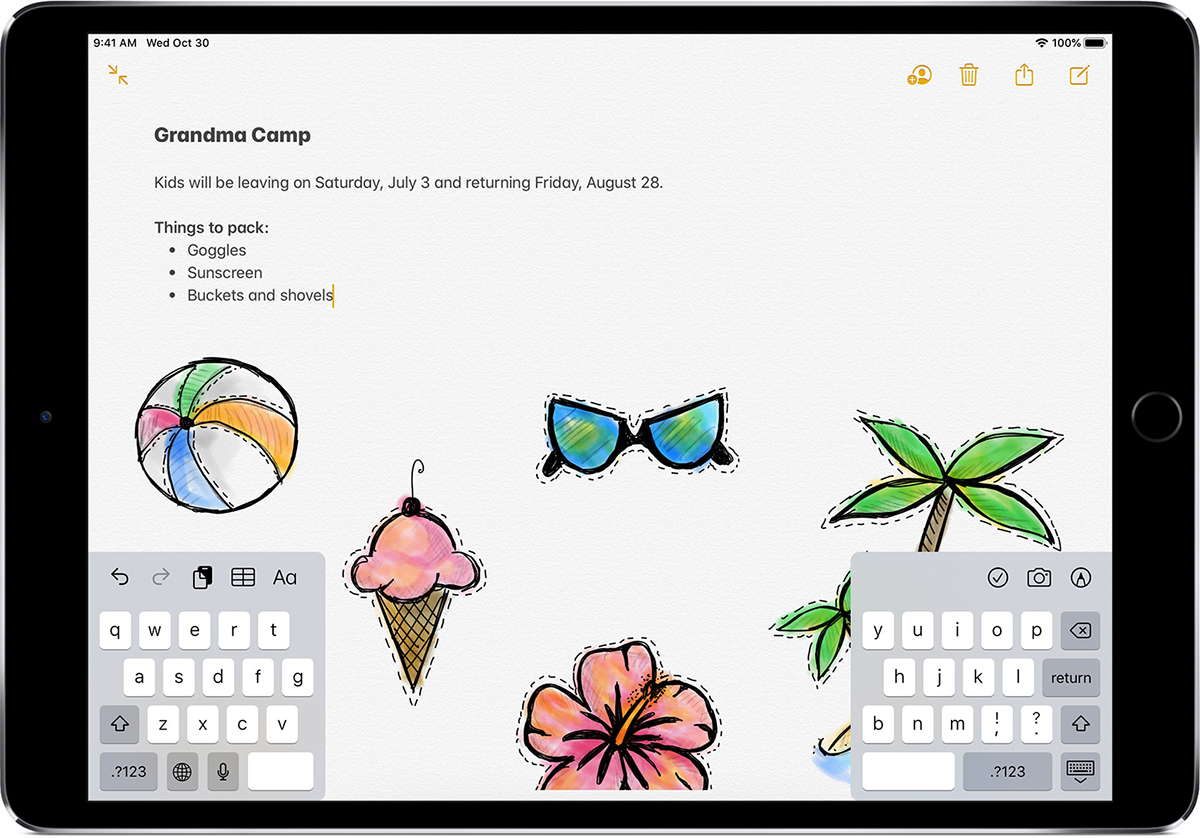
Split Keyboard is an option that allows for extra convenience with typing when holding an iPad with both hands. The keyboard is split into two halves that can be moved up and down.
To turn this on, navigate to Settings, then General. In the Keyboard section, tap on Split Keyboard to enable it. Tap on the keyboard icon and hold for a few seconds, then choose Split to split it in two when typing.
Built-In Second Monitor: iPad Sidecar
If you are already using a Mac as your main computer, you might need more visual workspace. Apple developers have already thought about that and created Sidecar — an integrated feature that turns iPads into second monitors. As an Apple Pencil user, you can also draw, as well as edit photos and videos with Sidecar, making it as useful as a graphic tablet.
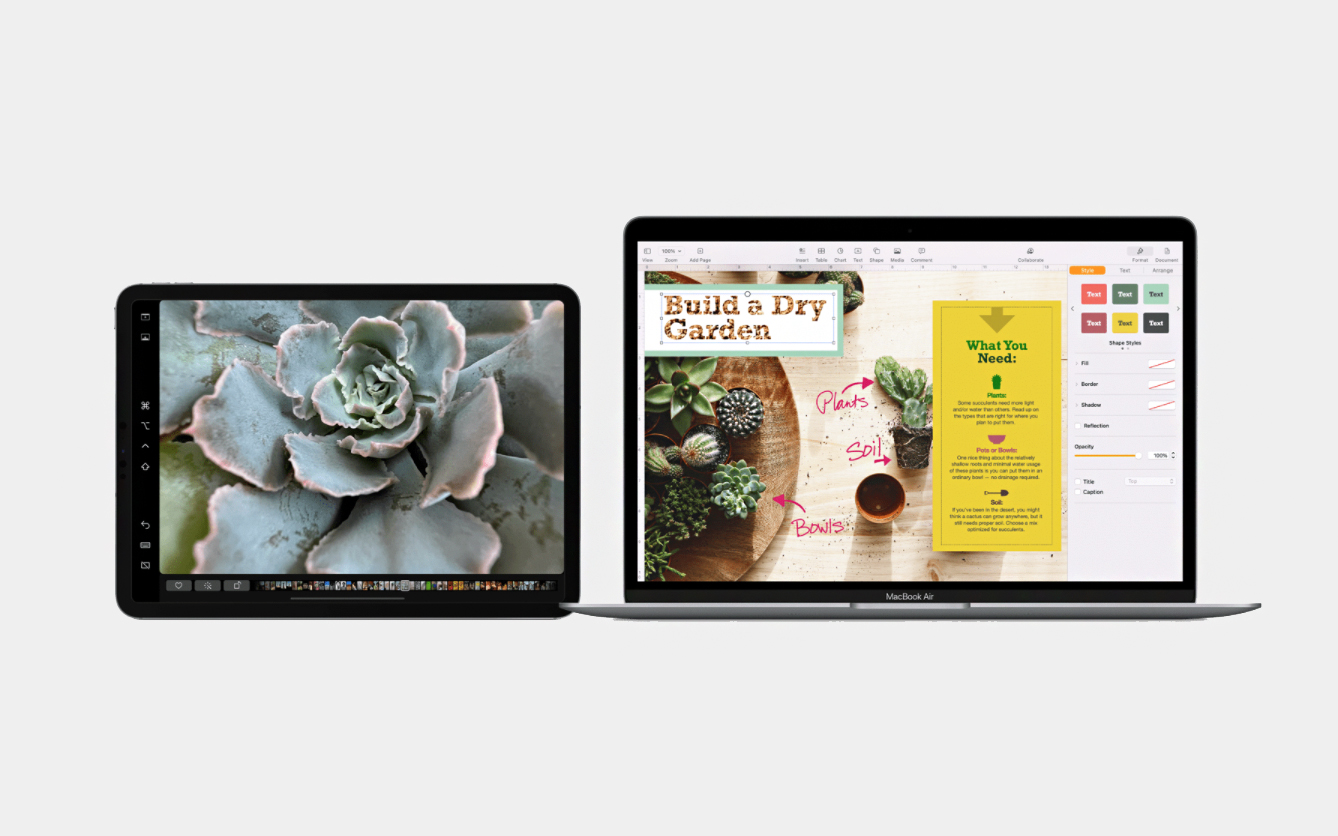
Using Sidecar on an iPad and a Mac
You can connect Sidecar to your devices wirelessly and through a wire. Wireless connection is possible via Wi-Fi:
- Sync two devices — iPad and Mac — through one Apple account by signing in, then update your macOS.
- Set your iPad next to your Mac.
- Enable Sidecar, then turn on your iPad as the second monitor through the Apple menu by navigating to System Settings, then Displays.
Note: You can connect your iPad to the Mac via a cable, then your tablet won’t discharge during use.
Sidecar is available in two modes:
- Your iPad can be an extension of the Mac desktop, where you’re able to move apps from one display to the other. In the top-left corner, you will see a green button. Then, hover over it and choose the Move to iPad option.
- Your iPad can display the same picture as the Mac. Select this mode in the Screen Mirroring options.
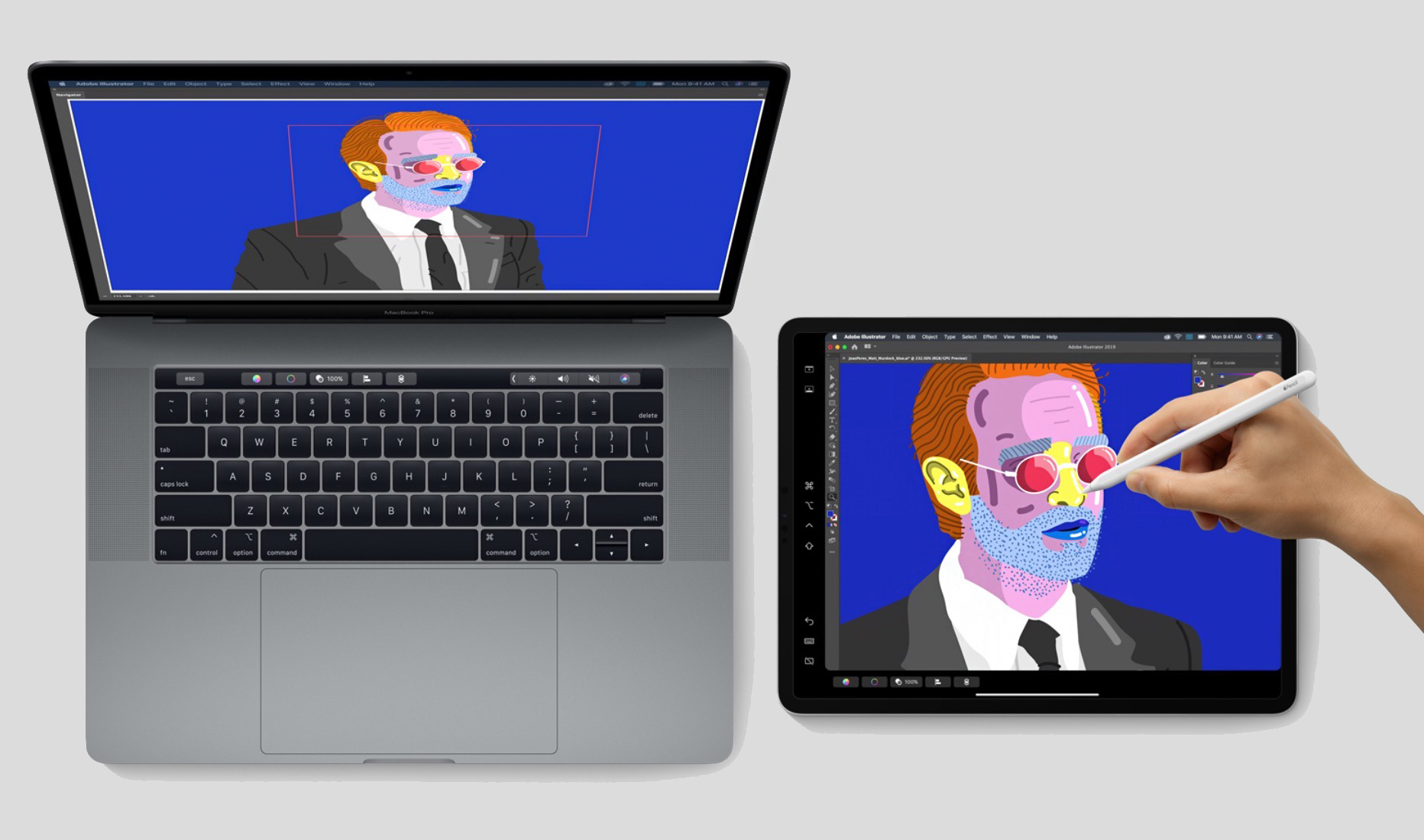
Note: Not all Mac devices have a Touch Bar, but Sidecar automatically enables it. You will see it on the iPad screen and can tap on it with your fingers or an Apple Pencil.
LEARB MORE ON THE TOPIC
The M5 Chip: How Apple Intelligence Improves MacBook Pro and iPad Pro Performance
How to Make a Laptop from an iPad: Customize and Complete with Accessories
iPad Mini 7 vs iPad Air 6: What to Buy This Year?
Stay up to date always!
Subscribe to the newsletter and be the first to know about new promotions and special offers from the store!