The way macOS works is different from Windows, so newcomers to the Apple ecosystem may experience some difficulties, for example, when installing software. We’re happy to reassure you: downloading apps on a Mac is actually faster than searching for an answer to this question online.
Table of contents
How to Install an App From the App Store
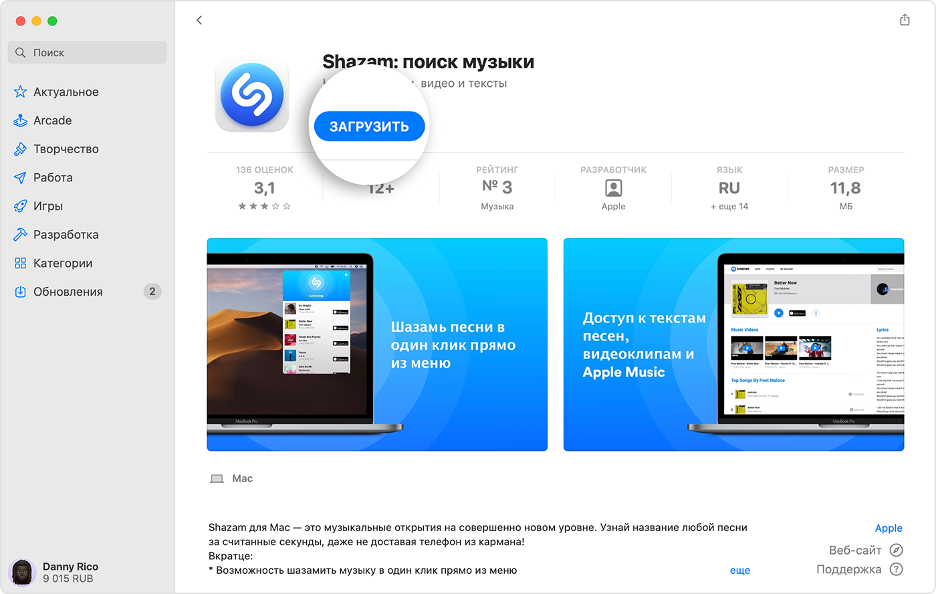
- On your Mac, open the App Store. The app icon is located in the Dock.
- Find the app you want to download.
- Click the Get button, then click the price or the Install button (Get > Install). If the only button you see is Open, the app is already installed on your computer.
- Enter the login and password for your Apple ID account.
How to Find an Installed App on a Mac
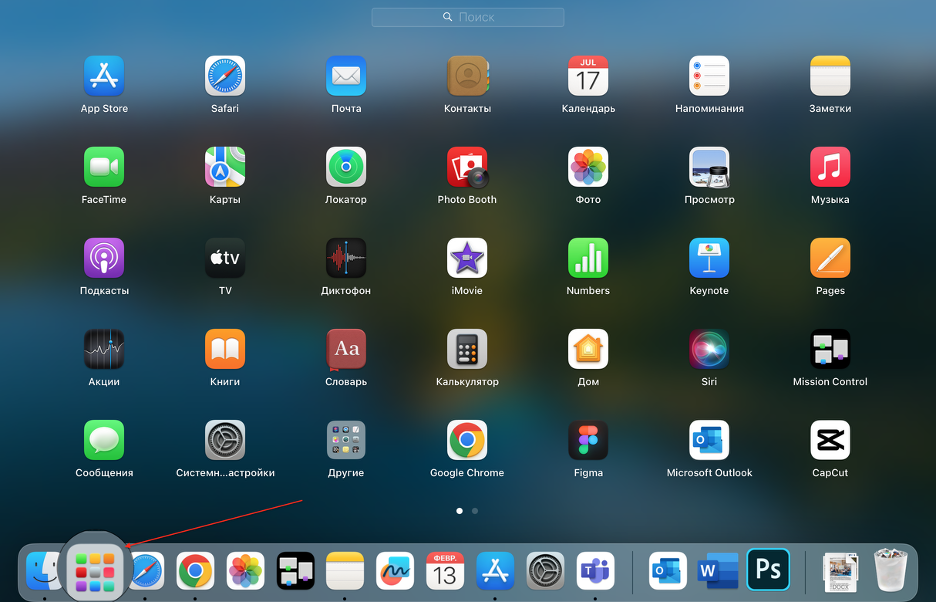
The easiest way to do this is by using Launchpad — a special menu that displays all applications on your Mac in a grid layout. The Launchpad icon is located in the Dock. To launch an app, simply click its icon.
You can also open an application using Spotlight. Just type the app name into the search bar and press Enter.
How to Download a Program on a Mac From the Internet
If you install an app from external sources, it will usually appear in the Downloads folder. Double-click the package file (an icon shaped like an open box) or the disk image. The developer’s installer should open automatically, but if it doesn’t, open it manually and follow the on-screen instructions.
How to Install a Program on a Mac Not From the App Store
This guide is suitable if you need to install an app from untrusted sources. If the developer is not registered with Apple, a warning window will appear on your screen. This doesn’t necessarily mean there is something wrong with the app — it may have been created before developer registration became mandatory. However, the application has not been verified, so macOS cannot determine whether it was modified or infected with viruses after release.
The safest option is to use an alternative app from an Apple-registered developer or download the latest version from the App Store. However, if you’re not looking for the easy way, you’ll first need to change your MacBook settings.
So, if you see the “App not from the Mac App Store” message and want to open it, follow these steps:
- choose Apple menu > System Settings > Privacy & Security;
- in Finder, locate the app you want to open (it should be in the corresponding folder);
- in the Security section, allow the option “App Store and Identified Developers.”
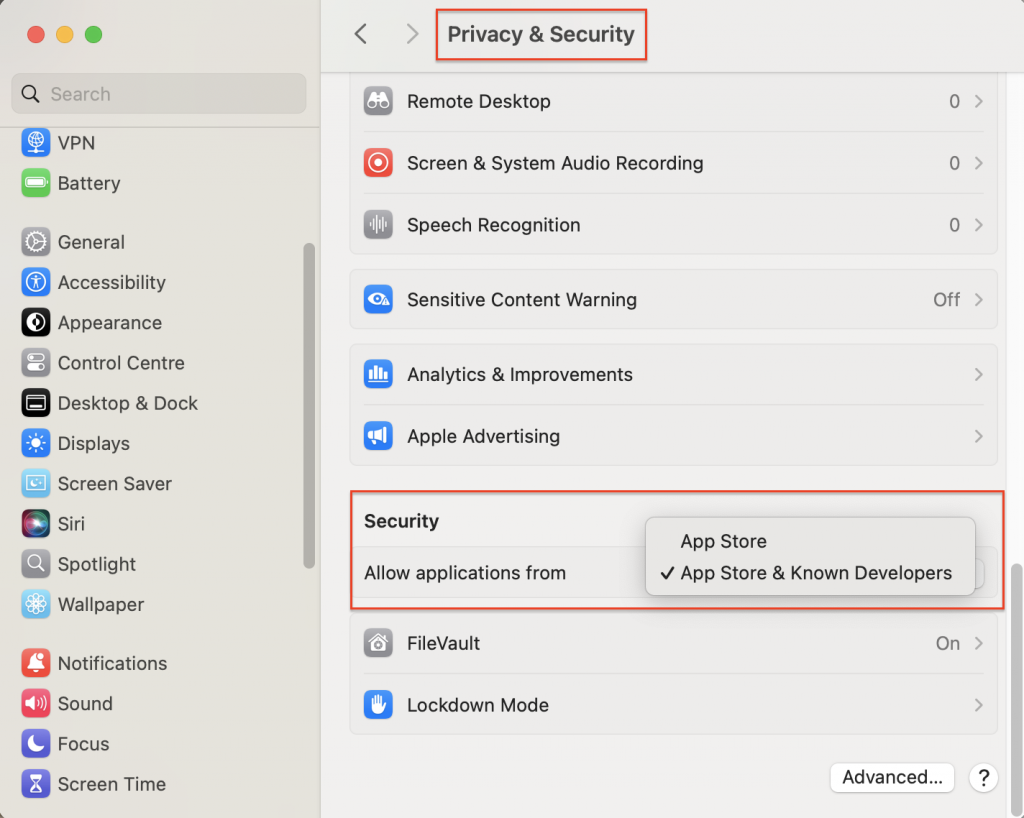
How to Install an App on a Mac From a Disk
Everything here is simple: insert the disk into the optical drive connected to your Mac and follow the on-screen instructions.
LEARN MORE ON THE TOPIC
Technology without compromise: MacBook Pro 14 2025 review
Apple’s 2025 Showcase: What Surprises Did Apple Unveil This Time?
Apple’s Summer Presentation: the most interesting WWDC 2025
Stay up to date always!
Subscribe to the newsletter and be the first to know about new promotions and special offers from the store!